technicalsupport@gulfcoast.edu
850.913.3303
First-Time Student Login to MYGCSC - Duo
First Reset Your Account Password.
To complete this process, you will need access to the email and phone number you used when registering.
Click here for detailed instruction setting your password.
Once you’ve set your account password go to the GCSC HomePage.
Login using your @my.gulfcoast.edu email address and the password you just set.
Upon first login, you will be prompted that More information is required. Clicking
Next will begin the MFA enrollment process.
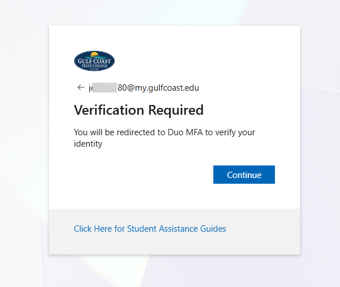
INSTALL DUO MOBILE FIRST
As of Fall 2026, GCSC uses Duo Mobile as its default Multi-Factor Authentication (MFA) method. Before you continue, install the Duo Mobile app on your mobile device from your app store:
- Apple: Duo Mobile on the App Store
- Android: Duo Mobile on Google Play
IMPORTANT: Be sure you are downloading the Duo Mobile app by Cisco Systems (see icon below).
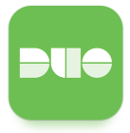
When installing, choose to Allow Notifications from the app and Allow the app to access your Camera.
INITIAL DUO SECURITY ENROLLMENT
Ideally, you have already downloaded the Duo Mobile app and allowed notifications and camera access.
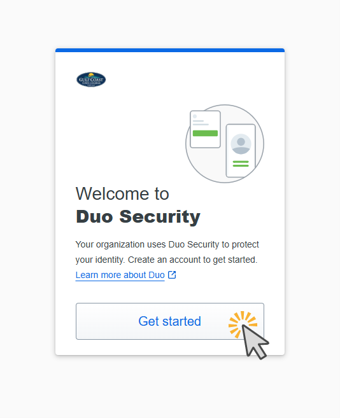
On the Duo enrollment screen, click Get started.
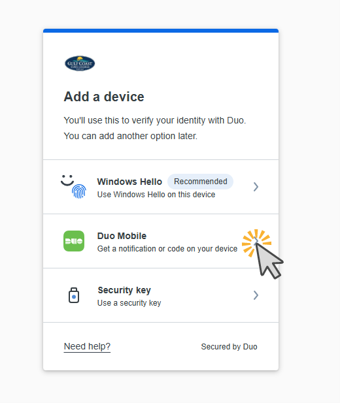
On the Add a device screen, choose Duo Mobile.
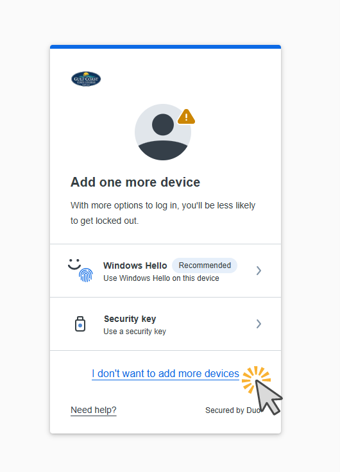
Windows Hello and Security Keys (for example, passkeys) are also offered. These are advanced options and are not covered in this guide. You are welcome to use them if you are familiar with either method.
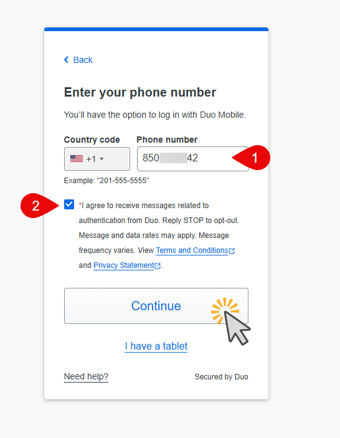
After choosing Duo Mobile, enter your mobile device number, check the agreement box, and click Continue.
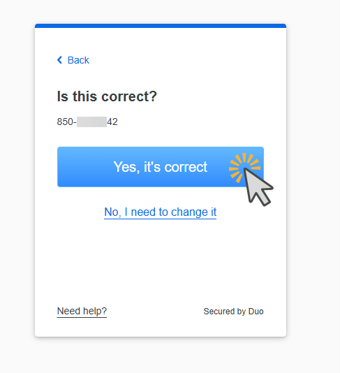
Duo confirms the phone number you entered. If it is correct, click Yes, it’s correct.
TROUBLESHOOTING
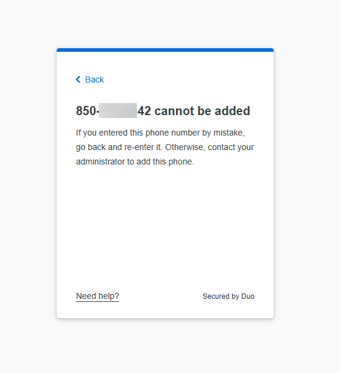
If, after entering your phone number, you see a message that your number cannot be added: Duo allows a phone number to be associated with only one account without secondary administrator approval. If you need to associate your mobile number with more than one account, contact the GCSC ITS Helpdesk directly.
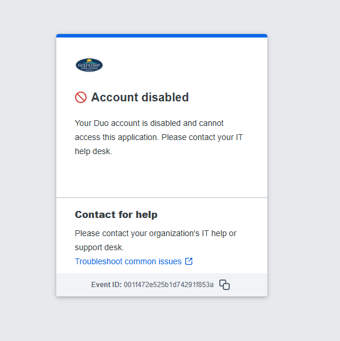
If, during registration or at logon, you see a message that your Duo account is disabled: this typically occurs when MFA registration is not completed within the allotted setup window. Contact the GCSC ITS Helpdesk directly to have your account re-activated.
COMPLETE YOUR ENROLLMENT
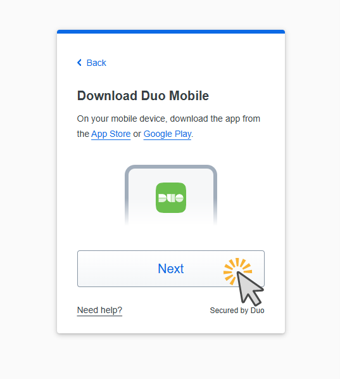
Next, you are prompted to download Duo Mobile. If you have not already installed it, do so now, then click Next. A QR code unique to your account is displayed.
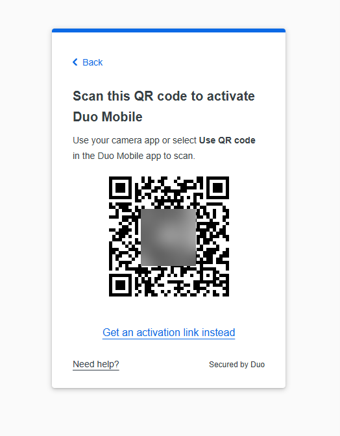
Open the Duo Mobile app, choose to add an account, and scan the QR code shown on your screen. This adds your @my.gulfcoast.edu account to Duo Mobile.
Prefer not to scan a QR code?
If you are not familiar with QR codes, you can have an activation link sent to your mobile device instead. Click Get an activation link instead below the QR code, then enter an email address you can open on your mobile device and click Send Email.
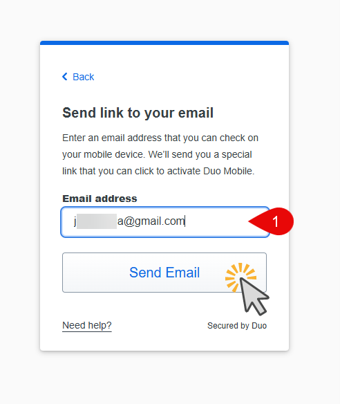
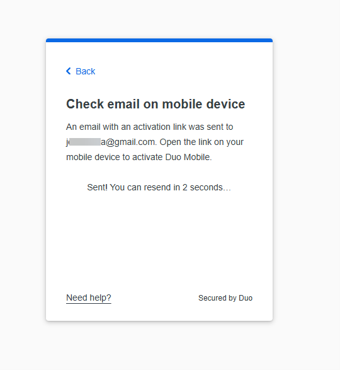
When the email arrives, open it on your mobile device and tap the link, allowing it
to open in the Duo Mobile app to activate your account.
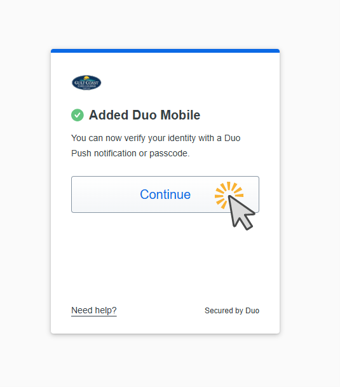
Once you have scanned the QR code or activated your account through the email link,
Duo confirms your device has been added. Click Continue.
You are offered one final option to add more devices. Click I don’t want to add more devices to continue.
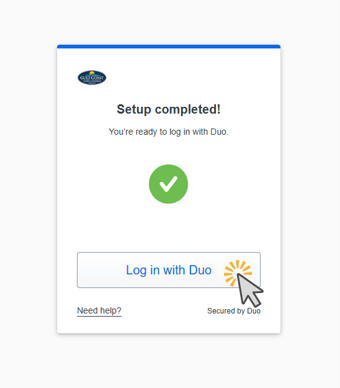
That’s it — your MFA is now set up and you can log in to your Gulf Coast account.
Click Log in with Duo.